Recently I wanted to save to my computer a beautiful photo of a flower placed in a Blogger’s post. I right clicked on it. But there came a warning: ‘Right Click Protection Provided by Whoz OnTop.com’. I abandoned the attempt with dismay. Now I casually got my blog registered with WhozOnTop for getting ratings. Then I tried to find out from where the blogger could have obtained the right click protection in this blog. But I could not. I wanted to check presence of any change in my blog after the registration. I just right clicked on one of my blog photos. I got the same warning (protection) as that of it in the Blogger’s post photo!
Tuesday, May 20, 2008


Friday, May 16, 2008
Working in Easier Ways and Pleasing to the eyes
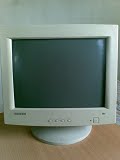
We can use our computer by modifying its display suitably so that each of us could work on it more conveniently. Even with wearing our specs for the near vision if we find it difficult to read or type the fonts on the computer screen, there are the following ways to tide over the problem:
You can click the View button on the tool bar, in case you are working on a Document, and then click on Zoom to open the Zoom dialog box. Check in the radio buttons or use the number box to choose your desired percentage of magnification and then click OK.
Or to get a quick magnification select the desired zoom level at the status bar at the bottom. After working with the magnification you can restore the zoom level to Normal by using this again or by selecting the View button as said above and choosing the option in it. The whole document will be then displayed in the normal size of fonts (the font size first selected by you in the Font Size button).
When you are making a document or browsing the web you can click the View button of the browser and select the Text Size from the list to increase, decrease the size or to restore to the normal size.
Or you can scroll down or up the wheel of the Mouse after pressing the Ctrl key, for decreasing or increasing the magnification. This could be used for working on document also.
These could make your computer work or the web browsing easier, convenient and pleasing to your eyes. (Note this: the tips for browsing in the points third and fourth works only with Mozilla Firefox!).
Tuesday, May 13, 2008
Earning as You Work Online!
You can earn when you work part time on the web and computer! There are many websites that deal with such jobs. One among them is: GoogleCash - 2. It makes you earn with a minimum initial investment (Rs.1000/-). It also offers two job programmes at a concessional rate. If you have the skill and time to spare, why cannot you avail yourself of these online lucrative jobs, that help companies to advertise their products?
Subscribe to:
Posts (Atom)
About Me

Tweeting


This work is licensed under a Creative Commons Attribution-Noncommercial-No Derivative Works 2.5 India License.